

Automated software testing
Automated software testing solutions can overcome the challenges of...
Learn the most common Git commands developers use to manage code, collaborate with teams, and support modern CI/CD workflows.

TL;DR
Version control plays an important role in any development project, including test automation. It is the practice of tracking and providing control over changes made in the source code.
Git is one of the most widely used distributed version control systems (DVCS): every clone is a full history, and work can continue offline. For test automation and quality engineering, Git connects local experiments, shared branches, pull requests, and pipeline triggers.
The Git project’s own manual opens with a straight definition: “Git is a fast, scalable, distributed revision control system with an unusually rich command set that provides both high-level operations and full access to internals.”
That “distributed” bit matters for testing and delivery, as your laptop has a full copy of history, not a thin client to someone else’s truth.
Git commands are the CLI (and sometimes GUI) operations that read or update the repository: history, branches, remotes, and the index (staging area).
Git commands were originally designed for coordinating work among programmers who were making changes to source code during software development.
Git commands were originally designed for coordinating work among programmers who were making changes to source code during software development.
These are the commands that live in the muscle memory of most developers. Using git help in the command prompt (on Windows), terminal (on Mac), or shell (on Linux) will give you a list of available Git commands.

git statusIt tells you what’s changed, what’s staged, what’s untracked, and what branch you’re on.
git add <file>
git add .
git add -p
Stages changes for the next commit. You can stage individual files, everything in the current directory, or—with the -p (patch) flag—interactively choose specific hunks of changes within the file.
git commit -m "Fix null pointer in payment validation"Records the staged snapshot. Write commit messages that explain why, not what—the diff already shows what changed.
git push
git push --set-upstream origin feature/login-redesign
Sends your local commits to the remote repository. If the branch doesn’t exist remotely yet, you’ll need –set-upstream (or -u for short) to create the tracking relationship.
git pull
git pull --rebase
Fetches remote changes and merges them into your current branch. The –rebase variant replays your local commits on top of the fetched changes instead of creating a merge commit, keeping the history linear.
git fetch
git fetch --all
Downloads changes from the remote without merging anything. It’s the non-destructive sibling of git pull.
git diff
git diff --staged
git diff main..feature/new-api
Shows the actual line-by-line differences. Without arguments, it shows unstaged changes. With –staged, it shows what’s about to be committed. With two branch names, it compares them.
git log
git log --oneline
git log --oneline --graph --all
Shows commit history. The default output is verbose; –oneline compresses each commit to a single line. Add –graph –all and you get an ASCII-art visualization of your branch topology, useful when you’re trying to understand how a feature branch diverged.
git branch
git branch feature/checkout-flow
git branch -d old-experiment
git branch -m old-name new-name
Lists, creates, deletes, or renames branches. The -d flag is a safe delete (it won’t let you delete an unmerged branch). Use -D to force it, but you’re throwing away work this way.
git checkout feature/api-v2
git switch feature/api-v2
git switch -c feature/new-thing
Switches branches. git switch was introduced because git checkout was overloaded—it also restores files, which confused people.
git merge feature/user-authCombines the history of one branch with another. If Git can do it cleanly (no conflicting changes), it’s seamless. If not, you’ll need to resolve conflicts manually.
git clone https://github.com/your-org/your-repo.git
git clone <url> -b <branch>
Downloads an entire repository and its history to your local machine. You generally do this once per project.
These commands set the stage. You use them when you’re starting a new project, joining a team, or customizing how Git behaves on your machine.
git init
git init my-new-project
Creates a new Git repository. It generates the .git directory and all its internal structure. You’ll use this when starting a project from scratch.
git config --global user.name "Your Name"
git config --global user.email "you@example.com"
git config --global core.editor "code --wait"
git config --list
Sets configuration values at the system, global (user), or repository level. At a minimum, set your name and email as they’re attached to every commit you make.
git help commit
git help -a
Opens the manual page for any Git command. The -a flag lists every available command.
git versionPrints the installed Git version. Useful when debugging behavior differences between machines.
Branching is Git’s “killer feature. It’s cheap (a branch is just a 41-byte file containing a commit hash), fast, and enables the kind of parallel development workflows that would have been impractical with older version control systems.
git rebase main
git rebase -i HEAD~5
Replays your commits on top of another branch’s tip, creating a linear history. Interactive rebase (-i) lets you squash, reorder, edit, or drop commits before they’re shared. Never rebase commits that have already been pushed to a shared branch.
git tag v2.1.0
git tag -a v2.1.0 -m "Release 2.1.0"
git push origin v2.1.0
Marks specific commits, typically releases. Lightweight tags are just pointers; annotated tags (-a) store the tagger’s name, date, and message. Most release workflows use annotated tags.
git mergetoolLaunches a visual merge conflict resolution tool based on your git config (VS Code, IntelliJ’s built-in merger, and the venerable vimdiff).
These commands manage the life cycle of your modifications—from the moment you make a change to the moment you decide what to do with it.
git stash
git stash save "work in progress: login form"
Temporarily shelves uncommitted changes so you can work on something else.
git stash popReapplies the most recently stashed changes and removes them from the stash.
git stash listShows all stashed change sets. Stashes are indexed as stash@{0}, stash@{1}, etc. If you’ve been stashing liberally, this helps you find the right one.
git stash drop stash@{2}Deletes a specific stash entry. Use it to clean up stashes you no longer need.
git rm obsolete-file.txt
git rm --cached sensitive-config.yaml
Removes a file from both the working directory and the staging area. The –cached flag removes it from tracking without deleting it from disk. Useful when you’ve accidentally committed a file that should be in .gitignore.
git mv old-name.js new-name.jsRenames or moves a file and stages the change in one step.
git restore modified-file.js
git restore --staged accidentally-added.js
git restore discards working directory changes; git restore –staged unstages a file without touching the working directory.
git reset HEAD~1
git reset --soft HEAD~1
git reset --hard HEAD~1
Moves HEAD and (optionally) modifies the staging area and working directory. This is a blunt instrument with three modes: –soft keeps your changes staged, –mixed (the default) unstages them, and –hard discards everything. –hard is destructive and unforgiving.
When something breaks, these commands help you figure out what happened, when it happened, and who’s responsible.
git show abc1234
git show HEAD~3
Displays the details of a specific commit (i.e., the author, timestamp, message, and the actual diff).
git blame src/utils/validate.jsAnnotates each line of a file with the commit and author who last modified it.
git shortlog -s -nSummarizes commit history by author. The -s flag shows counts only; -n sorts by number of commits.
git reflogShows a log of where HEAD has pointed (i.e., every checkout, commit, reset, rebase, and merge). If you’ve lost a commit through a bad reset or rebase, git reflog can help you find it.
git log -p -- src/api/handler.jsShows the full diff (patch) for each commit. The — followed by a file path limits the output to a single file’s history.
git diff --name-only main..HEADLists only the names of changed files, without the actual diffs.
Git is a distributed system, which means every developer has a complete copy of the repository. These commands manage how those copies stay in sync.
git remote
git remote -v
Lists the named remote connections. The -v flag shows the URLs for fetch and push operations.
git remote add upstream https://github.com/original/repo.gitAdds a new remote. If you’ve forked a repository, you’ll typically add the original as upstream so you can pull in changes from the source.
git remote remove old-originRemoves a remote connection.
git push --force-with-leaseA safer alternative to git push –force. It will refuse to overwrite the remote branch if someone else has pushed commits since you last fetched.
git pull --rebase origin mainFetches and rebases instead of merging. This avoids the “merge commit clutter” that accumulates when multiple developers regularly pull from a shared branch.
Everyone makes mistakes. These commands show you how to fix them gracefully, if possible.
git revert abc1234Creates a new commit that undoes the changes from a previous commit. This is the safe way to undo something that’s already been pushed.
git commit --amend -m "Corrected commit message"
git commit --amend --no-edit
Modifies the most recent commit. Use it to fix a typo in a commit message or to add a forgotten file. The –no-edit flag keeps the original message. Don’t amend commits you’ve already pushed unless you’re the only one working on the branch.
git cherry-pick abc1234Applies a single commit from one branch onto another. Useful when you need a specific fix from a development branch on a release branch without merging everything.
git clean -n
git clean -fd
Removes untracked files from the working directory. The -n flag does a dry run (shows what would be deleted). The -f flag is required to actually delete anything—Git forces you to be explicit about destruction. The -d flag includes untracked directories.
When you need to find something in a codebase, such as a string or a bug’s origin, you’ll often find these commands are faster than grepping through files manually.
git grep "TODO" -- "*.java"
git grep -n "deprecated" HEAD~10
Searches the contents of tracked files. It’s faster than system grep because it operates on Git’s internal data structures. You can search across commits, branches, or file patterns.
git bisect start
git bisect bad HEAD
git bisect good v2.0.0
# Git checks out a commit; you test it
git bisect good # or bad
# Repeat until Git identifies the first bad commit
git bisect reset
Binary-searches through your commit history to find the exact commit that introduced a bug. You tell Git one commit where the bug exists (bad) and one where it doesn’t (good). Git checks out the midpoint; you test it and report.
git log --oneline --graph --allRenders a compact, visual representation of all branches and their relationships. It’s the fastest way to get a mental model of what’s happening in a repository without opening a GUI.
git log --author="Andreea" --since="2025-01-01"Filters commit history by author and/or date range. Useful during incident reviews or when tracking down who introduced a specific pattern.
You might go weeks or months without needing these. But when you need them, nothing else will do.
git worktree add ../hotfix-branch hotfix/critical-fix
git worktree list
git worktree remove ../hotfix-branch
Creates additional working directories linked to the same repository. Instead of stashing your work and switching branches, you can have multiple branches checked out simultaneously in different directories.
git submodule add https://github.com/lib/useful-library.git
git submodule update --init --recursive
Embeds one Git repository inside another. This sounds elegant in theory, but in practice, submodules have a reputation for being finicky—as in, they require explicit initialization and updates, and new contributors frequently clone a repo and wonder why certain directories are empty.
git subtree add --prefix=vendor/library https://github.com/lib/library.git main --squashAn alternative to submodules that merges another repository’s contents directly into a subdirectory. It avoids many of the submodule’s usability issues but makes the host repository’s history more complex.
git archive --format=tar --output=release.tar HEADCreates a compressed archive of a tree. Useful for generating clean release packages without the .git directory or any untracked files.
git bundle create repo.bundle --all
git clone repo.bundle
Packages a repository (or a subset of its history) into a single binary file that can be transferred offline. Niche, but essential if you need to move a repo across an air-gapped network.
git gc
git gc --aggressive
Runs garbage collection, wherein it compresses file revisions, removes unreachable objects, and optimizes the repository. Git runs this periodically on its own, but you might trigger it manually on large repositories where performance has degraded.
git fsckVerifies the integrity of the repository’s object database. If you suspect corruption (disk issues, incomplete transfers), this is the diagnostic tool to use.
git rev-parse HEAD
git rev-parse --short HEAD
git rev-parse --show-toplevel
Translates Git references into SHA-1 hashes. Mostly used in scripts—it’s how automation tools resolve branch, names, tags, and relative references into concrete commit hashes.
git describe --tagsGives a human-readable name to a commit based on the nearest tag. The output looks like v2.1.0-14-gabc1234—meaning 14 commits after tag v1.2.0 , at commit abc1234. CI systems often use this to generate build version numbers.
git sparse-checkout init --cone
git sparse-checkout set src/frontend
Limits the working directory to a subset of the repository’s files. Essential for monorepos where you don’t need (or want) the entire codebase checked out.
git maintenance startConfigures automatic background maintenance tasks—prefetching, garbage collection, commit-graph updates.
git range-diff main..feature-v1 main..feature-v2Compares two versions of a patch series. If you’ve rebased a feature branch and want to verify that the rebase preserved your changes correctly, range-diff shows exactly what changed between the old and new versions.
git config --global rerere.enabled trueShort for “reuse recorded resolution.” Once enabled, Git remembers how you resolved a merge conflict and automatically applies the same resolution if it encounters the same conflict again.
git notes add -m "Reviewed by QA" abc1234
git log --show-notes
Attaches metadata to commits without modifying them. Useful for adding review notes, QA status, or deployment annotations to existing history.
Sometimes you need to share changes without pushing to a remote—for email-based workflows, offline code review, or applying fixes across disconnected repositories.
git format-patch -3
git format-patch main..feature-branch --output-directory patches/
Generates patch files from commits, one file per commit. The Linux kernel development community, where Git originated, still uses this workflow for submitting changes via email.
git apply fix.patchApplies a patch file to the working directory without creating a commit. Use git am (below) if you want to preserve the original commit metadata.
git am patches/*.patchApplies a series of patches from mailbox-format files, creating commits for each. It’s the receiving end of git format-patch.
git lfs install
git lfs track "*.psd"
git add .gitattributes
Git Large File Storage replaces large binary files (images, datasets, compiled assets) with text pointers in the repository, storing the actual file content on a separate server.
git filter-repo --path src/ --forceThe modern replacement for git filter-branch, used to rewrite repository history—typically to remove sensitive data that was accidentally committed, or to extract a subdirectory into its own repository.
git config core.hooksPath .githooksRedirects Git’s hook scripts to a directory you can commit to version control. By default, hooks live in .git/hooks/ and aren’t shared across clones. Setting a custom hooks path means your team’s pre-commit linters and pre-push checks travel with the repository.
git diff --checkFlags whitespace errors such as trailing spaces, mixed tabs/spaces, and blank lines at the end of files. Many teams include this in pre-commit hooks to keep diffs clean.
git log --all --full-history -- src/deleted-file.tsTraces the complete history of a file, even after it’s been deleted. If someone removed a file and you need to understand what it contained or why it was removed, this will find it.
git update-index --assume-unchanged local-config.yamlTells Git to stop tracking changes to a specific file without removing it from the index. Useful for local configuration files that you need to modify but never commit. To undo: –no-assume-unchanged.
git rev-list --count HEADCounts the total number of commits reachable from HEAD. Some build systems use this as a simple, monotonically increasing build number.
| Category | Command | What it does |
| Setup | git init | Create a new repository |
| git clone <url> | Copy a remote repository locally | |
| git config | Set user name, email, preferences | |
| Daily | git status | Show working directory state |
| git add | Stage changes | |
| git commit | Record staged snapshot | |
| git push | Upload local commits to remote | |
| git pull | Fetch + merge remote changes | |
| git diff | Show line-by-line changes | |
| Branching | git branch | List, create, or delete branches |
| git switch / checkout | Change branches | |
| git merge | Combine branch histories | |
| git rebase | Replay commits on a new base | |
| git tag | Mark specific commits | |
| Undoing | git revert | Undo a commit with a new commit |
| git reset | Move HEAD, optionally discard changes | |
| git restore | Discard working directory changes | |
| git stash | Temporarily shelve changes | |
| Inspecting | git log | View commit history |
| git blame | See who changed each line | |
| git reflog | View HEAD movement history | |
| git bisect | Binary-search for a bug | |
| Collaboration | git remote | Manage remote connections |
| git fetch | Download without merging | |
| git push –force-with-lease | Safe force push | |
| Advanced | git worktree | Multiple working directories |
| git sparse-checkout | Partial repo checkout | |
| git rerere | Reuse conflict resolutions | |
| git lfs | Handle large binary files |
Git doesn’t prescribe a workflow. It provides the primitives, and teams build processes over them. Here are some of the most widely adopted patterns.
Every new feature or fix gets its own branch. Development happens in isolation, and when the work is complete, it’s merged into main via a pull request. This is the default at most organizations and maps naturally to code review processes.
This was formalized by Vincent Driessen in a 2010 blog post. It defines specific branch types, such as main, develop, feature/*, release/*, hotfix/*, with strict rules about how they merge. Gitflow works well for projects with scheduled releases.
In this form of workflow, developers commit to main (or a short-lived branch that merges within hours, not days). This approach requires strong automated testing because you need confidence that each merge doesn’t break anything.
As Martin Fowler writes on his website: “Continuous Integration encourages all members of a development team to integrate their work daily, instead of developing features in isolation for days or weeks.”
In this mode, each developer forks the repository, works in their fork, and submits pull requests to the upstream repository. This is very common in open-source projects where contributors don’t have write access to the main repository.
Your Git branching strategy isn’t just a developer convenience; it directly shapes how effectively your team tests software:
When each feature lives on its own branch, you can run targeted test suites against just the changed code.
When each feature lives on its own branch, you can run targeted test suites against just the changed code. Short-lived branches mean faster feedback loops; long-lived branches accumulate merge debt and make integration testing harder the longer they exist.
Teams that use merge commits create a clear integration point where a full test suite should run. Teams that rebase get a cleaner history but lose the explicit “these two together here” marker that helps when diagnosing test failures after integration.
If your team tags releases, those tags become anchors for regression test suites. QA can then reliably spin up the exact state of the codebase that corresponds to, say, v3.2.1 and test against it without having to guess which commit corresponds to which release.
Some organizations maintain branches, like branching or QA, that correspond to deployment environments. This provides stable targets for testing but can create bottlenecks when multiple teams need to deploy to the same environment simultaneously.
Modern CI/CD systems are deeply intertwined with Git. Nearly every automated testing workflow starts with a Git event such as a push, a pull request, a tag, or a merge.
Pre-commit hooks run tests or linters locally before a commit is even created. If the tests fail, the commit is rejected. This catches issues at the earliest possible moment, before they would end up entering the repository’s history.
One can configure them via .git/hooks/pre-commit or can even use a framework that version-controls hook configuration.
CI triggers on push/PR occur when a developer pushes a branch or opens a pull request and the CI server (GitHub Actions, GitLab CI, Jenkins, etc.) checks out that exact commit and runs the test suite. The results are reported back to the pull request as status checks.
This is the most common pattern and the one where Git and testing are most tightly coupled.
Merge gates prevent code from being merged unless CI passes. This is a policy decision configured in your Git hosting platform, such as GitHub’s “required status checks,” GitLab’s “merge request approvals,” etc.
It means no code reaches main without passing automated tests, which is table stakes for any team that ships frequently.
Tag-triggered deployment pipelines use Git tags to kick off release processes. When a tag matching a pattern is pushed, the CI system builds a release artifact, runs the full regression suite, and (if everything passes) deploys to production.
The tag provides an immutable reference point that ties a deployment to a specific state of the code.
Diff-aware test selection uses git diff –name-only to identify which files changed, then runs only the tests that cover those files. This is a significant optimization for large codebases where the full test suite might take hours to finish.
Tools like Tricentis and others implement risk-based or change-based test selection that leverages Git metadata to prioritize testing.
The most effective developers work in environments where every push, merge, and tag automatically triggers the right tests, at the right scope, with results that flow back to the people who need them.
Git manages change, but Tricentis manages the confidence that those changes work. Git tells you what changed, when, and by whom. Tricentis’s continuous testing platform tells you whether those changes broke anything, and where to focus testing effort when you can’t test everything.
The most effective developers work in environments where every push, merge, and tag automatically triggers the right tests, at the right scope, with results that flow back to the people who need them. That’s modern quality engineering, and it starts with the workflows this guide covers.
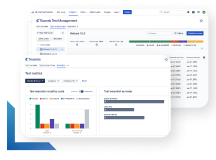
Learn how to supercharge your quality engineering journey with our advanced testing solutions.
Learn how to supercharge your quality engineering journey with our advanced testing solutions.
git fetch downloads changes from the remote without modifying your local branches, while git pull does a fetch and then merges (or rebases). Fetch is “show me what’s new,” and pull is “show me what’s new and integrate it.
Rebase for a clean, linear history on feature branches. Merge for an explicit record of integration. One should never rebase commits already pushed to a shared branch.
git reset –soft HEAD~1 keeps all changes staged. git reset HEAD~1 (the default –mixed mode) unstages them. If you want them gone entirely, use git reset –hard HEAD~1, but this is destructive.